


Set to release on December 6, 2018, WordPress 5.0 brings along one major update – the new Gutenberg editor. If you want to get the most from this tool, you’ll need to learn about the Gutenberg blocks system.
Gutenberg helps you create content in a more visual way than the previous TinyMCE editor. To do this, it provides a library of pre-built elements, or ‘blocks’. Each block can be added to a page or post and customized. There are blocks to handle basic components such as text and images, as well as some that provide advanced features (such as buttons and tables).
How to use Gutenberg blocks to create a WordPress post (in 3 steps)
Assuming you’ve updated your site to WordPress 5.0, your site should use the new Gutenberg editor by default.
All that’s left is to learn how to apply the new Gutenberg blocks system!
We’re going to illustrate the editor’s key features by walking you through what it’s like to create a basic WordPress post, but you can use the same approach no matter what type of content you’re creating with Gutenberg.
Step 1: Add a block to your post
The first thing you’ll want to do is give your post a title, using the dedicated field at the top of the editor:

This works exactly the same way as it did in the classic editor. After that, however, things start to change.
If you hover over the area directly below your post’s title, you’ll see a few icons:

The Plus icon lets you select Gutenberg blocks and add them to your post. On the right, there are also options to quickly add the most commonly-used blocks – the text, image, and gallery options.
For now, click on the Plus icon, and you’ll see a new menu:

This menu lists out all the Gutenberg blocks that the editor currently includes. There’s a section at the top with your own Most Used options, a number of organized categories underneath, and even a search bar to help you find what you need quickly.
To add a block to your post, you just have to find and click on it. Let’s start simple, with a Paragraph block. Place the block in your post, then move on to the next step (you can also create a paragraph block by simply typing in the editor).
Step 2: Customize your block
When you add a paragraph block, it doesn’t look like much right away. However, once you begin to start typing into the field, new options will appear:

You’ll see some basic formatting settings, such as alignment, bold, and italics. In addition, check out the right-hand sidebar of the editor screen:

There, you’ll find more block-specific options. In this case, you can change the text’s font size and color, add a drop cap, and even include some custom CSS (in the Advanced menu). Any changes you make, either here or on the block itself, will be immediately visible.
Each one of the Gutenberg blocks on offer comes with its own unique settings.
For example, if you hit Enter, you’ll add a new block below your paragraph block. However, this time you can try adding an image block by using that same Plus sign:

As you can see, you’re able to upload an image or add one that’s already in your Media Library. You can edit the image, alter its alignment, and add CSS in the sidebar.
There’s no doubt that you’ll use plenty of paragraph and image blocks. However, Gutenberg has more to offer. There are also a number of Gutenberg blocks offering new options not available in the classic editor.
For instance, you can add a Button block to your post:

This creates a clickable button for visitors to interact with. You can edit the text of the button itself, and include the URL it will link to right below:

By selecting the icon in the top-left corner of the block, you can change the style of your button:

In addition, you can alter both the background and text colors in the sidebar. While this isn’t a huge range of options, it’s enough to create a handy customized button, which you can use to encourage visitors to sign up for an email list, buy a product, or whatever else strikes your fancy.
Step 3: Put the finishing touches to your post
Once you’ve added a few blocks, you may find yourself wanting to make some changes. Fortunately, the Gutenberg editor is pretty flexible in letting you modify your content’s layout.
If you want to delete a block, for example, you can select the Options icon above it, and click on Remove Block:

By hovering over a block, you can use the up and down arrows to rearrange your blocks at will. Or, you can also click on the six dots between the arrows to use drag and drop to move a block:

It’s also worth noting that you can create multi-column layouts. This is an exciting feature, although it’s still in beta at the time of this writing. You can access it by placing a Columns block in your post:

This lets you create up to six side-by-side columns, and place whatever blocks you’d like within each one. It’s an option that offers a lot of potential for creating unique layouts.
Finally, it’s important to note you still have access to post-wide (or page-wide) settings as well. In the right-hand sidebar, click on the Document tab to find them:

Here, you’ll find most of the options you’re familiar with. You can publish the post, set an author, choose categories and tags, add a featured image, and so on. You can even modify comments settings in the Discussion menu. However, you won’t need to save your content, as it will auto-save at frequent intervals while you’re working.
This is all you need to know in order to use the Gutenberg blocks system! It’s quick to pick up, but there are a lot more options than we’ve covered here. We’d encourage you to continue experimenting with the various Gutenberg blocks available, and become comfortable with the choices on offer (so you’ll be ready when the editor launches for real).
You can use plugins to add new blocks, too
One of the most powerful things about Gutenberg is that you use plugins to add all kinds of new blocks to the editor. In fact, some of your favorite plugins might have already added their own blocks.
For example, some gallery plugins now let you insert a gallery using a block, rather than the old shortcode method that many plugins used.
Beyond that, you can also find tons of plugins that are solely focused on adding new blocks. For example, the Otter Blocks plugin gives you blocks for:
- Pricing tables
- Testimonials
- Sharing Icons with calls to action
- Lots more
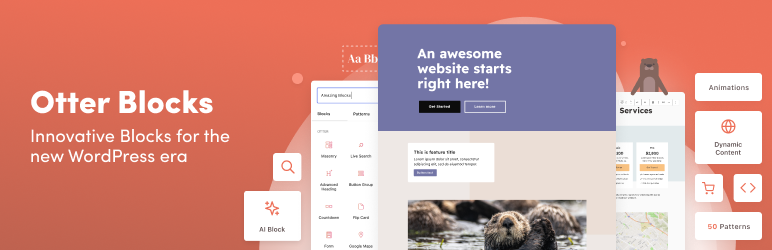
There are lots of other Gutenberg blocks plugins that you can find at WordPress.org, as well.
One other plugin worth mentioning is the Cloud Blocks plugin. While it’s still in beta, it offers an interesting approach that lets you install Gutenberg blocks from third-party developers “from the cloud”.

Conclusion
With the release of WordPress 5.0, Gutenberg is set to become the default editor for all WordPress sites (unless you’re using the Classic Editor plugin).
Fortunately, creating content in Gutenberg is very simple. You just have to:
- Add whatever Gutenberg blocks you want to your post or page.
- Customize each block’s individual settings.
- Rearrange blocks, delete them, and even organize them into columns if you like.
And if you want even more blocks to use in your designs, consider adding one of the many Gutenberg blocks plugins.
If you’d like more comprehensive Gutenberg tutorials, we’ve written a more general Gutenberg for newbies post, as well as a detailed Gutenberg editor tutorial with some advanced productivity tips.


Or start the conversation in our Facebook group for WordPress professionals. Find answers, share tips, and get help from other WordPress experts. Join now (it’s free)!